.NET PDF and Web Browser is never this easy
Quickly extend your .NET application with PDF file generating/processing ability, or seamlessly integrate the popular Chromium browser engine both for UI or background task with extensive customization options such as custom resource loader and JavaScript extension.
Currently: v2024.0.96.0 · Change logs · Also on nuget
EO.Pdf
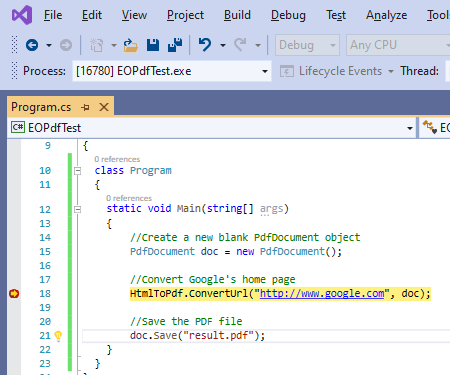
PDF Generating, Processing & Viewing API
- HTML to PDF based on Google Chromium browser engine, renders everything exactly as in Google Chrome browser;
- 100% .NET managed DLLs, reference and run, no installation needed;
- Support .Net Framework 2.0 and above, .NET Core 3.0 and above;
- Read, fill, and sign existing PDF files;
- PDFViewer class for both WPF and Windows.Forms;
- Working with existing PDF files;

EO.WebBrowser
Chromium based browser engine for .NET
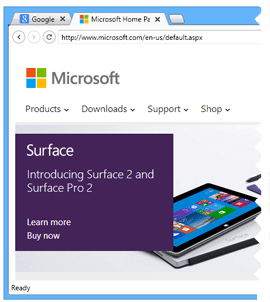
- Seamlessly integrate the power of Chromium browser engine and .NET;
- Add browser capacity in Windows.Forms and WPF app simply by drag and drop;
- Also support "headless" mode with no UI, perfect for data crawling/automation;
- Support .Net Framework 2.0 and above, .NET Core 3.0 and above;
- Extensive customization options for UI, resource loader and JavaScript interface;
- Fully self-contained with zero external dependency;
EO.Wpf
WPF UI control library to compliment/extend standard controls
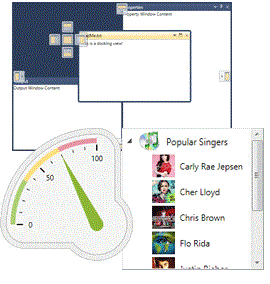
- Built-in skin and theme engine;
- Enhanced version of standard controls such as TabControl/ListBox;
- Visual Studio style docking view engine;
- Various Scales and Gauge controls/primitives;
- Support .Net Framework 4.0 and above, .NET Core 3.1 and above;
EO.Web
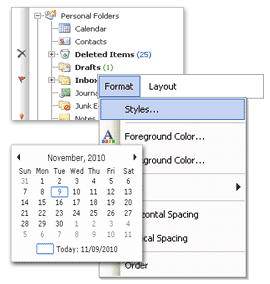
High quality UI control for legacy ASP.NET WebForm application
- Built for ASP.NET WebForm application since ASP.NET 1.0, fully tested over time;
- Not suitable for newer ASP.NET framework such as MVC, but perfect for maintaining legacy WebForm code/modules in a larger MVC application;
- Support .Net Framework 2.0 and above, .NET Core 3.0 and above;
- Fully supported and regularly updated for platform/browser compatibility;